Universal
Premium

Verifizierter Creator
Shadow Plays
AI Friend
Last Update: 07.02.2026Log in to purchase or install
Log In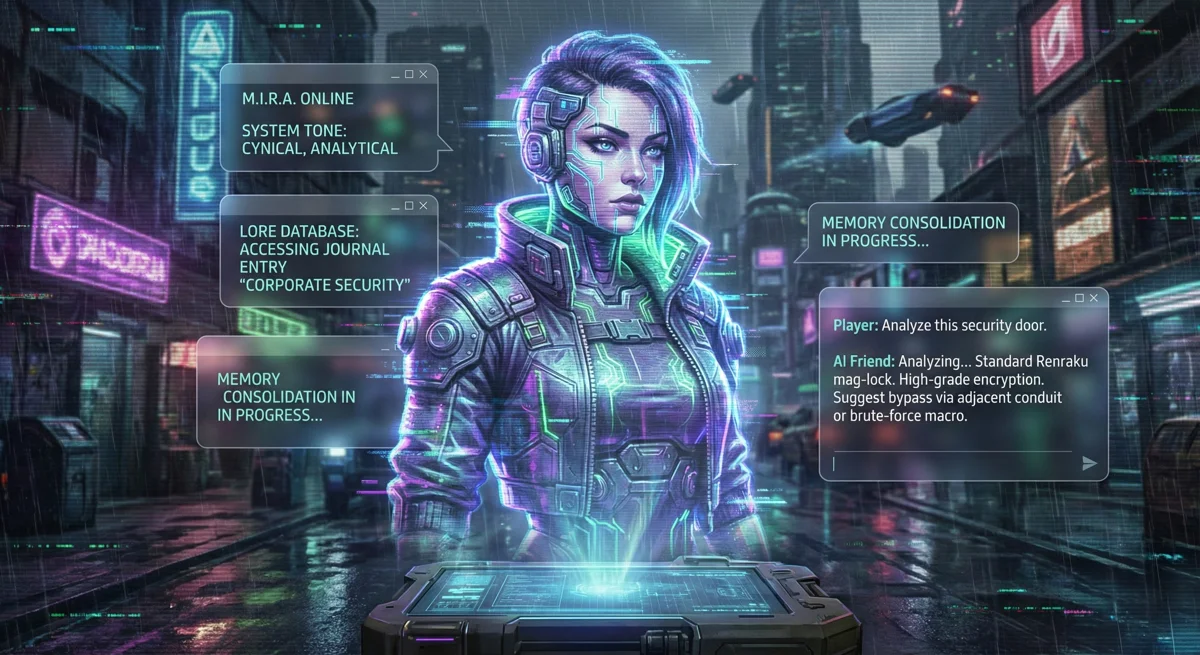
AI Friend
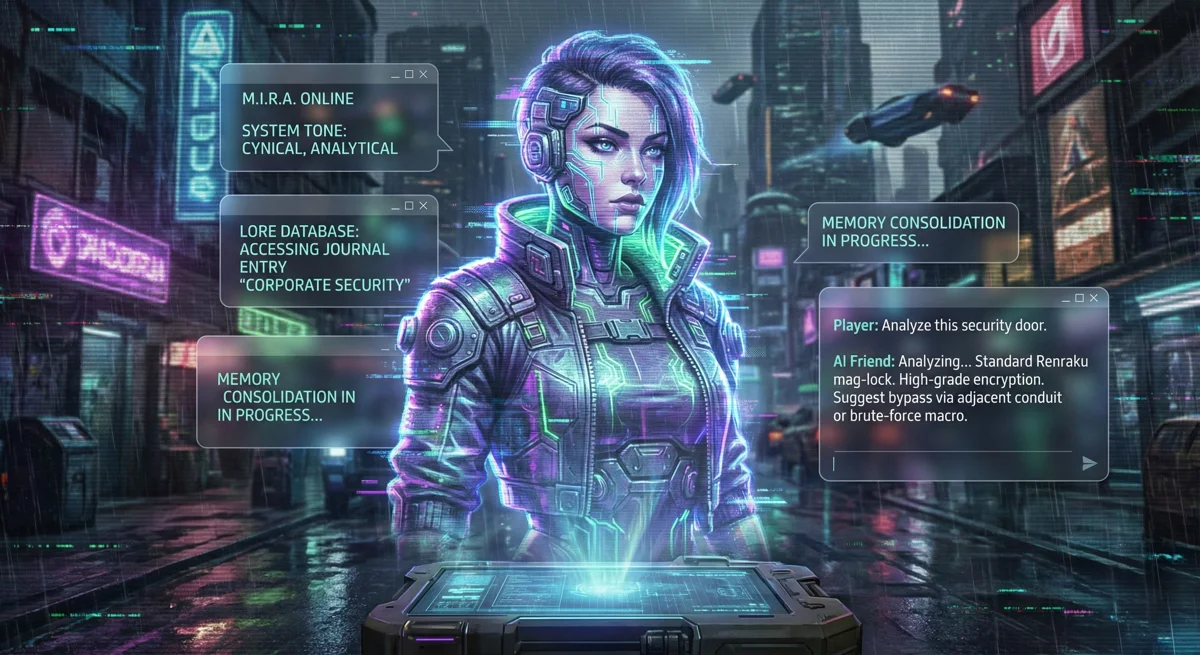
AI Friend is an immersive intelligence module for Foundry Virtual Tabletop. Leveraging Google Vertex AI (Gemini models), it provides a dynamic, "in-universe" chat experience that reacts to your game's context, history, and specific journal entries.
Whether it’s a ship’s computer, a magical grimoire, or a cyberpunk hacked line, AI Friend makes your NPCs and interface come alive.
🚀 Key Features
📱 Smartphone Widget Integration
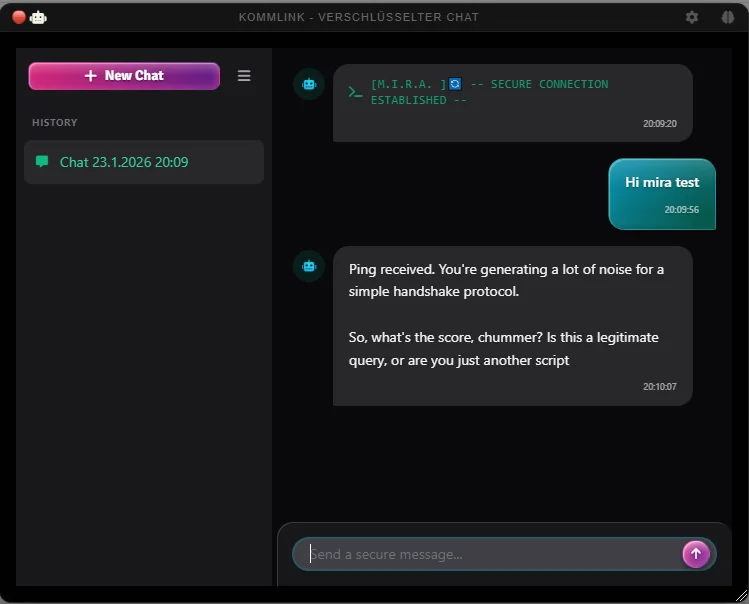
Take immersion to the next level. When both modules are installed, AI Friend automatically installs a dedicated AI Chat Bot App inside the virtual smartphone.
In-World Tech: Players can open their smartphone widget and chat with the AI just like a modern messaging app.
Seamless Sync: Conversations flow between the standalone window and the smartphone app.
Pocket Companion: Perfect for Cyberpunk Red, Shadowrun, or modern settings where players need a digital assistant on the go.
Seamless Sync: Conversations flow between the standalone window and the smartphone app.
Pocket Companion: Perfect for Cyberpunk Red, Shadowrun, or modern settings where players need a digital assistant on the go.
🛠️ Configuration & Setup
1. Prerequisites
You must have a Google Cloud Project with the Vertex AI API enabled. You will need:
Project ID
API Key
Location (Region)
2. Module Settings
Once installed, go to Configure Settings > Module Settings > AI Friend:
Enter your GCP Project ID, API Key, and Location.
(https://www.google.com/search?q=Optional) Select your preferred Gemini Model ID (default: gemini-2.5-pro).
Click Access Control to select which players can use the AI.
3. Personality Configuration
Open the AI Friend window (Robot Icon in Token Controls) and click the Cog icon (GM Only).
Designation: Name your AI (e.g., M.I.R.A.).
Tone: Set the attitude (e.g., "Cynical, Analytical").
World Context: Drag Journal Entries into the "Linked Database" area. The AI will read these to learn about your world.
Core Directives: Write a system prompt to define the AI's role.
🧠 Memory & Storage
The module uses a dedicated Item (default name: "M.I.R.A") in your world to store all data.
Flags: Personality settings, conversation history, and memory logs are stored as flags on this item.
Consolidation: You can manually "consolidate" the current chat into long-term memory using the Brain icon in the header.
Interface Overview
🧩 Module Settings
1. Enter your GCP Project ID, API Key, and Location.
2. (Optional) Select your preferred Gemini Model ID (default: `gemini-2.5-pro`).
3. **Access Control:** Select which players can use the AI.
⚙️Personality Configuration
Open the AI Friend window (Robot Icon in Token Controls) and click the ⚙️ (GM Only).
Designation: Name your AI (e.g., M.I.R.A.).
Tone: Set the attitude.
World Context: Drag Journal Entries here to teach the AI your lore.
Core Directives: Write a system prompt to define the AI's role.
💻 API for Macro Writers
You can interact with the AI programmatically:
// Send a message to the AI and get a response
const response = await game["ai-friend"].sendChat("Analyze this security door.");
console.log(response);


// Test the current system prompt (Debug)
await game["ai-friend"].testPrompt();
🎨 Styling
The module features a custom "glassmorphism" UI built for Dark UIs:
Cyberpunk/Sci-Fi aesthetics.
Glossy buttons and chat bubbles.
Animated state indicators (loading pulses, typing indicators).
Created by Shadow